CodX Editor is a multi-file development workspace for building web projects without first installing a desktop IDE. It brings editing, live results, Node.js, GitHub, and controlled teamwork into the browser.
No editor installation Real project files Permission-aware collaboration
Major features
A practical workspace for the complete web-project loop
Move from an idea to working browser code, understand errors, collaborate safely, and keep a portable copy. Each major feature solves a specific part of that workflow.
Feature 01 · Write
Smart editing that stays close to the web platform
Syntax colors, project-aware suggestions, Emmet-style HTML expansion, filename completion, and line-aware diagnostics help without hiding the HTML, CSS, and JavaScript you are learning.
HTML, CSS, JavaScript, JSON, environment, and backend files
Suggestions learn project classes, IDs, variables, and filenames
Diagnostics identify the relevant file, line, column, and token
Smart editing
Feature 02 · Organize
Real project files, not one disposable snippet
Create linked pages, stylesheets, scripts, JSON, media, and environment files. Import an archive, save in the browser, and export a ZIP when you need a backup you control.
Multi-file explorer with project-safe filenames
Media, starter templates, saves, and unsaved-work recovery
Portable ZIP import and export
Multi-file projects
Feature 03 · See and debug
Preview, inspect, refresh, and understand the result
The preview connects source to output. Refresh deliberately, inspect rendered HTML with syntax highlighting, adjust zoom, follow project links, and use the console to trace JavaScript.
Live or manual preview updates with refresh
Element inspection with matching highlighted markup
Console output and clickable diagnostic locations
Live preview
Feature 04 · Collaborate
Live teamwork with visible roles and host controls
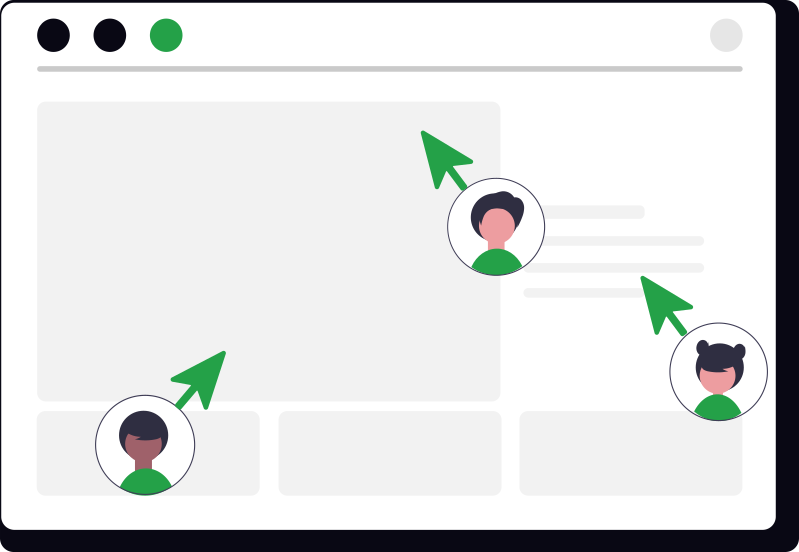
Sessions include chat, unread badges, waiting-room approval, roles, custom cursors, file visibility, and controls that help the host manage access.
Host, co-host, and participant permissions
Hidden files disappear from affected participants' tabs
Group and private chat with unread counts capped at 99+
Live collaboration
Feature 05 · Save and share
Choose local saves, GitHub commits, or public publishing
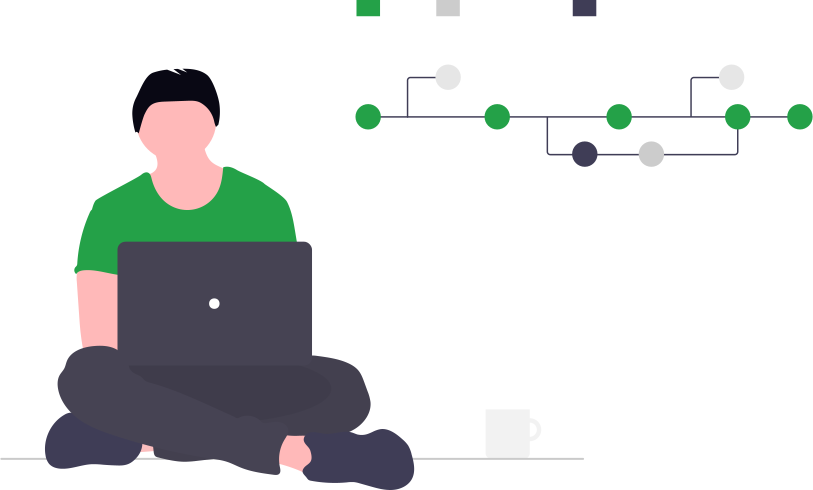
Keep a browser copy, export a ZIP, connect GitHub through OAuth for repository work, or create a public view-only link after reviewing every included file.
Repository browsing, file creation, uploads, edits, and commits
Optional commit messages and repository refresh
Public links kept separate from editable collaboration sessions
Save and share
Feature 06 · Extend
Run Node.js and npm in your browser
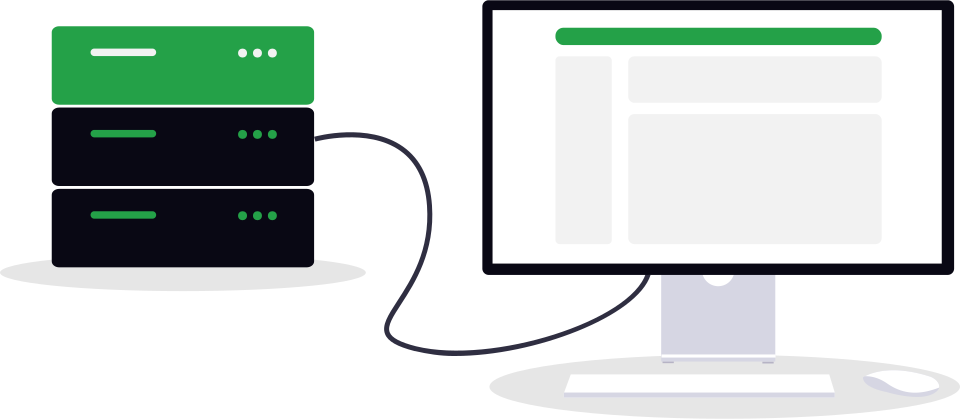
Start a Node.js server without installing anything. Dependencies install automatically, a built-in terminal runs npm commands, and your running server appears live beside your code. Also here: font and icon browsers, Google Font controls, Zen Mode, and the phone editor layout.
Terminal commands, dependencies, server detection, and localhost bridging
Fontsource, Google Fonts, and Font Awesome helpers
Theme, sizing, Zen, and mobile-focused controls
Node.js runtime
How CodX Editor Compares
A practical comparison of documented project workflows, runtime options, collaboration, and project portability.
CodX Editor
CodePen
JSFiddle
StackBlitz
Replit
Web preview
Live or manual
Integrated preview
Run / Result panel
Integrated preview
Live preview
Multi-file projects
Included
Plan-limited; 3 files on Free
3 fixed code panels
File tree
File tree
Node.js development
Optional browser runtime
Front-end packages; no Node runtime
Browser code only
WebContainers runtime
Cloud runtime and shell
Real-time collaboration
Included sessions
Owner needs PRO
Listed; limits unclear
Team editing; live presence not documented
Core / Pro seats
Collaboration controls & communication
Roles, host controls, group + private chat
Viewer / editor roles
Not detailed in docs
Team roles and access
Cursor presence; external team chat
ZIP project transfer
Import + export
Export; sign-in required
Not documented
Download in non-Codeflow projects
Import + export
GitHub workflow
Browse, edit, upload + commit
No repo editing in current docs
Display from repo / Gist
Connect + commit
Import, sync + push
Why CodX Editor Feels Better
Instant Feedback Loop
Type, run, and preview in one place with built-in console output,
jumpable errors, and red inline highlights that surface issues
fast.
Preview + Debugging
Collaboration That Stays In Context
Share a collaboration link, chat as a group or privately, and see
live collaborator cursors without leaving the editor.
Links + Chat + Live Cursors
Focused Coding Experience
Use smart HTML suggestions, font tools, ZIP project workflows, and
Zen Mode when you want the interface to disappear and the code to
take over.
Suggestions + Zen Mode
How It Works
1
Create or Open A Project
Launch CodX Editor, create files, and organize your HTML, CSS, and
JavaScript in one place.
2
Code With Smart Tools
Use syntax highlighting, tag and attribute suggestions, jumpable
error badges, and inline error highlighting to code faster with
fewer mistakes.
3
Preview, Share, Collaborate
Run your project instantly, generate a collaboration link, chat in
real time, and build together with live collaborator cursors.
Use Cases
Students
Practice coding exercises quickly in class or at home without
complex setup.
Frontend Developers
Prototype UI ideas, test snippets, use Zen Mode for focused work,
and share working demos with teammates and clients.
Teachers & Mentors
Create live coding sessions and review projects with learners
using collaboration tools.
Start Your Next Project Today
No install, no waiting. Open CodX Editor and turn ideas into working
projects in minutes.
CodX Editor is designed around the actual loop used to build a small web project: create files, write code, inspect the result, diagnose a problem, save a version, and share it. The workspace keeps those actions close together so a learner can understand how HTML, CSS, and JavaScript connect instead of treating them as unrelated snippets.
Project structure
Create multiple source files, add media, switch between files, and keep related assets together. File-name rules help avoid broken browser paths when a project is exported or shared.
Visible results
Render the current HTML page beside the editor, follow links between project pages, inspect preview markup, and use the console to connect code with browser behavior.
Actionable debugging
Read errors with file, line, and column details. Jump back to the reported location and use highlighted tokens as a starting point instead of guessing where the problem began.
Practical project path
From a blank file to a shareable result
A browser editor is most useful when it helps you finish a task. This is the intended CodX Editor workflow for a small site, classroom exercise, or interface prototype.
Start with a real project
Choose a starter, open saved work, import a ZIP, or begin with separate HTML, CSS, and JavaScript files. The starter gives you a working relationship between the files that you can inspect and change.
Build with feedback
Use suggestions and Emmet-style HTML expansion while you write. Run the page, check the preview at different zoom levels, and keep the console visible when learning JavaScript events or conditions.
Keep a portable copy
Save a browser copy for convenience and export a ZIP when you need a backup you control. If you connect GitHub, you can also edit repository files and create a commit with an optional message.
Share intentionally
Publish a view-only project link for an audience, or create a collaboration session when people need to edit together. Those are different jobs, so CodX Editor keeps publishing and live collaboration separate.
Learn by changing things
Useful for lessons, prototypes, and focused experiments
Beginners can see exactly which file controls structure, appearance, and behavior. Teachers can prepare a starter and use collaboration controls to guide a room. Experienced frontend developers can isolate a layout idea or reproduce a browser bug without creating a full local repository first. For larger applications, the built-in Node.js workspace installs npm packages automatically and runs server commands in an isolated browser environment, with the live server shown next to the code.
Know the boundary: CodX Editor is ideal for learning, demos, prototypes, and shareable web projects. Important production work should also be backed up in a ZIP or version-control repository, and secrets should never be placed in client-side code or a public project.
Frequently asked questions
Questions? Start here.
Quick answers about creating, saving, transferring, collaborating, and sharing with CodX Editor.
Do I need to install anything?
No. The standard HTML, CSS, and JavaScript workspace runs in a current browser with JavaScript and local storage enabled.
What can I build in CodX Editor?
You can build multi-file websites, lessons, prototypes, interactive demos, and browser projects. Projects that need npm packages or a development server can run a full Node.js server in the browser, with no installation.
Where are my saved projects kept?
Normal saves and drafts are stored in your browser. For important work, export a ZIP or commit to GitHub so you also have a portable backup.
Can I move my projects to another device?
Yes. Device Transfer moves projects and settings using a one-time code, link, or QR code. You can replace the current editor or keep it open while importing.
Can other people code with me?
Yes. Collaboration sessions include visible cursors, chat, roles, host controls, and an optional waiting room. Only share editable session links with people you trust.
Can I publish or connect GitHub?
Yes. You can create a view-only published link or connect GitHub to browse repositories, edit files, upload changes, and create commits.
Does CodX Editor work on phones and tablets?
Yes. Phones and portrait tablets use focused Files, Editor, Preview, and Console tabs, while landscape tablets use the laptop-style split workspace.
Where can I learn every feature?
Open the Help page for the complete handbook, or launch the guided tour inside the editor for a step-by-step introduction.